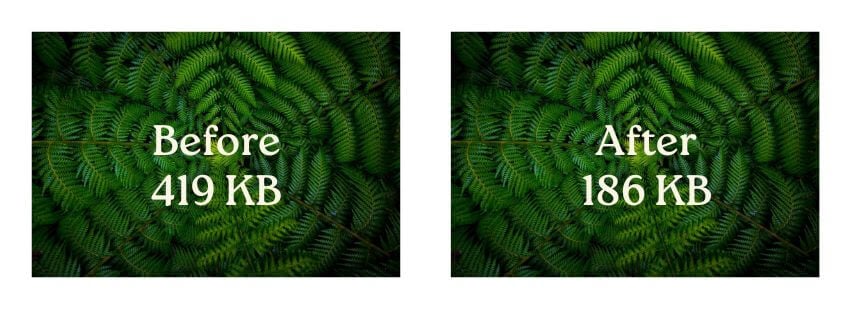
Let’s face it, visuals are the lifeblood of the internet. Compelling images and graphics draw visitors in, enhance your content, and make your WordPress website more engaging. When I first start building html websites in 2008 there were niche content sites with mostly text and only a few tiny images. Now, people will not read a wall of text and the majority of most web pages is visual content.
These visual assets can also be a major drag on your site’s loading time if not handled correctly. Slow-loading images lead to frustrated users, higher bounce rates, and a negative impact on your SEO.
The good news? Optimizing your images for WordPress speed is a relatively straightforward process that can yield significant performance gains. You do not have to resort to using small images or low quality images. You can have visually stunning content without sacrificing precious loading time when you reduce the file size of the image. Let’s dive into the essential strategies for picture-perfect performance.
Why Image Optimization is Crucial for Website Speed
Before we get into the “how-to,” let’s understand why optimizing your images is so vital for a fast-loading WordPress site:
- Reduced File Size: Optimized images have significantly smaller file sizes, meaning they take less time to download and display in a user’s browser.
- Faster Page Load Times: Smaller image sizes directly contribute to faster overall page load times, improving user experience and SEO.
- Lower Bandwidth Consumption: Optimized images consume less bandwidth, which can be particularly important for users on limited data plans and can also reduce your hosting costs.
- Improved SEO: Search engines like Google consider page speed as a ranking factor. Faster loading times can lead to better search engine rankings.
- Enhanced Mobile Experience: Mobile users often have slower internet connections. Optimized images ensure a smoother and faster browsing experience on mobile devices.
Lighter images will improve your website’s load time. You will also see great improvements performance metrics. All of this without sacrificing image quality.
The Essential Techniques for WordPress Image Optimization
Ready to make your images load like lightning? Here are the key techniques you need to implement:
- Choose the Right Image File Format: Different image formats are best suited for different types of visuals:
- JPEG (.jpg or .jpeg): Ideal for photographs and complex images with lots of colors. JPEGs use lossy compression, which reduces file size by discarding some image data (with adjustable quality).
- PNG (.png): Best for graphics, logos, and images with transparency. PNG uses lossless compression, preserving all image data, resulting in larger file sizes than JPEGs for complex images.
- GIF (.gif): Primarily used for simple animations and images with limited colors.
- WebP (.webp): A modern image format developed by Google that offers superior lossless and lossy compression compared to JPEG and PNG, often resulting in smaller file sizes and better image quality. Consider using plugins that support WebP conversion and delivery.
- Resize Images to the Correct Dimensions: Avoid uploading massive images and relying on CSS to scale them down. Instead, resize your images to the exact dimensions they will be displayed on your website before uploading them. Most image editing software (like Adobe Photoshop, GIMP, or even online tools) allows you to resize images easily.
- Compress Your Images: Compression reduces the file size of your images without significantly impacting their visual quality. My two favorite tools to use are Tinypng and Imagify. These tools offer:
- Lossy Compression: Reduces file size by permanently removing some image data. Use this judiciously, aiming for the smallest possible file size while maintaining acceptable visual quality (JPEGs primarily use lossy compression).
- Lossless Compression: Reduces file size without losing any image data. This is ideal for PNGs and situations where preserving every pixel is crucial.
- Implement Lazy Loading: Lazy loading is a technique that delays the loading of off-screen images until they are about to enter the user’s viewport. This significantly improves the initial page load time, especially for pages with many images below the fold. You can also use WordPress plugins such as WP Rocket to easily implement lazy loading. This is automattically provided to all of my clients who are on a WordPress Care Plan.
- Use a Content Delivery Network (CDN): While not directly an image optimization technique, a CDN can significantly speed up image delivery. A CDN stores copies of your website’s static assets (including images) on a network of geographically distributed servers. When a user visits your site, the CDN server closest to their location delivers the images, resulting in faster loading times for users around the world. All of my clients who have a WordPress Care Plan already have Cloudflare CDN included in their WordPress web hosting.
- Optimize Thumbnails: WordPress automatically generates various thumbnail sizes for your images. Ensure that these thumbnails are also optimized for size and format. Your image optimization plugin should ideally handle thumbnail optimization as well.
- Consider Using Next-Gen Image Formats (WebP): As mentioned earlier, WebP offers superior compression and quality compared to traditional formats. If browser compatibility is not a major concern for your target audience (or if you use a plugin that provides fallbacks for unsupported browsers), consider converting your images to WebP for significant file size reductions.
- Monitor Your Image Performance: Use website speed testing tools like Google PageSpeed Insights, GTmetrix, or EcoGrader to analyze your site’s performance and identify if images are still a bottleneck. These tools often provide specific recommendations for image optimization.
Luckily, you don’t have to manually optimize every single image. Here are some helpful tools and resources:
- WordPress Image Optimization Plugins: Smush, ShortPixel, Imagify, EWWW Image Optimizer, Optimole.
- Online Image Compression Tools: TinyPNG (for PNG and JPEG), Compressor.io, ImageOptim.
- Image Editing Software: Adobe Photoshop, GIMP (free), Canva.
- Website Speed Testing Tools: Google PageSpeed Insights, GTmetrix, EcoGrader.
The Takeaway: Optimize for Speed and Make People Happy
Optimizing images for your WordPress website is not just about making your site faster; it’s about providing a better experience for your visitors, improving your SEO, and ultimately achieving your online goals more effectively. Most people are expecting a website to load in under 2 seconds. When it takes longer there is a sharp decline in engagement. Many people are impatient and leave the site if they have to wait.
I begin focusing on website speed after seeing how much of a difference it can make for small business owners. If you want to find out what a faster website can do for your business, schedule a time for a call!